
You can connect a Google Calendar account to Ellie, manage connected calendar accounts, and check what availability data Ellie can use for a selected calendar and date range.
Step by step
- Make sure your account is on an active trial or a paid plan. Calendar integration is not available on free plans.
- Start the Google Calendar connection flow from Ellie and sign in to the Google account you want to connect.
- Complete Google's permission steps to finish the connection.
- After the connection is complete, review your connected calendar accounts.
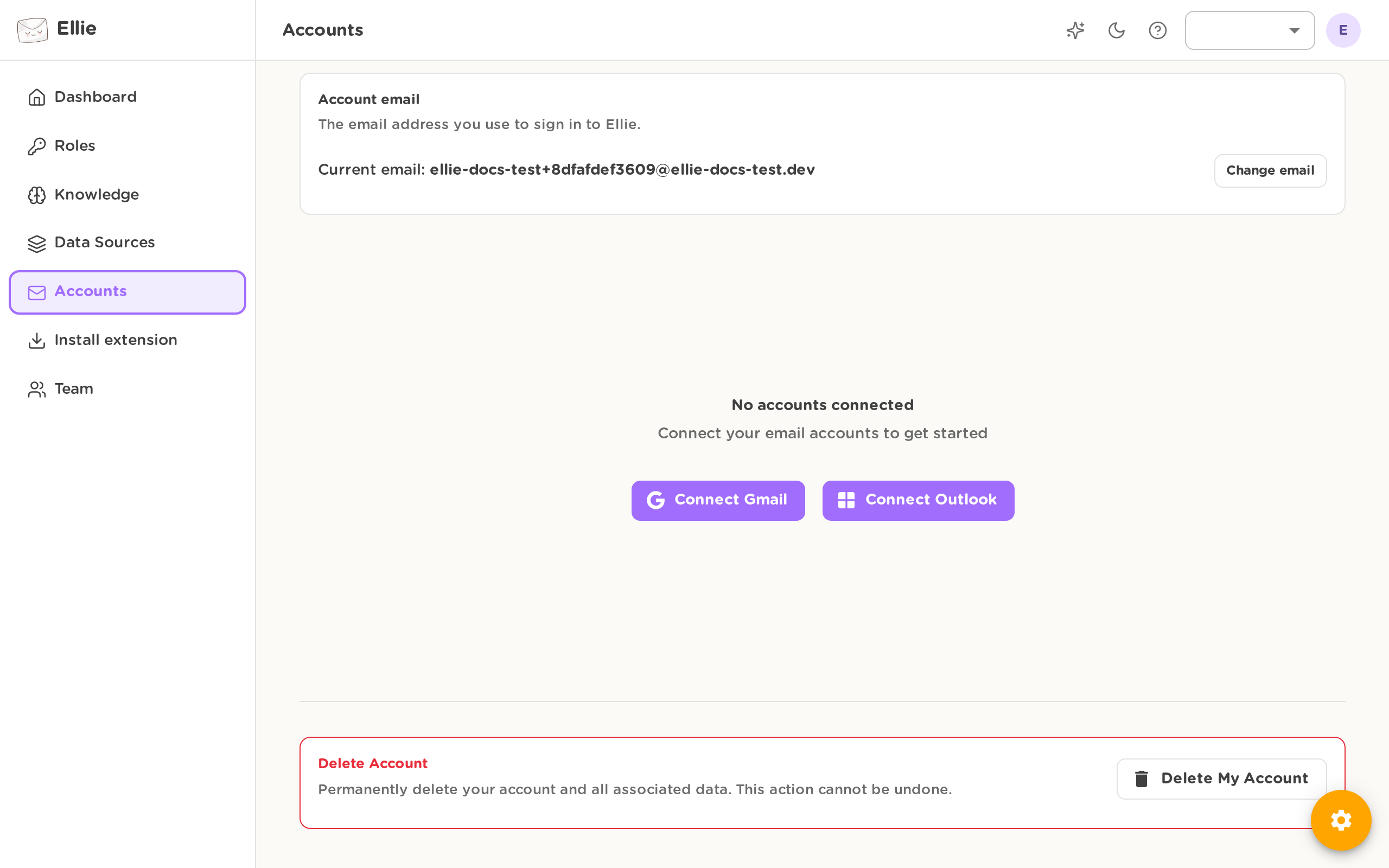
- If you need to remove a calendar account, disconnect it from the connected accounts list.

Disconnecting a calendar account also removes any settings saved specifically for that account. Your user-wide defaults are kept, so reconnecting later starts from your general preferences.
- Open your calendar settings and update the availability options you need, such as timezone, working hours, default meeting duration, buffer time, look-ahead period, personal meeting/booking links and when they're offered (off, fallback_only, or always), or whether availability is enabled.
- To check what Ellie can use, open the availability preview for a connected calendar account and choose the date range you want to inspect.
Good to know
- If you connect a Google Calendar account that matches a connected Gmail identity, Ellie links them automatically where possible.
- When you connect your first calendar, Ellie creates default availability settings if you do not already have them.
- Availability preview requires a specific connected calendar account. If no account is selected, the preview cannot be returned.
- The preview returns only the availability information Ellie uses for drafting, not raw calendar events.