
You can add website content to Ellie’s Knowledge so it can use that material when preparing drafts. This also lets you exclude specific URLs and track whether the website training has started and how many pages were crawled.
Step by step
- Open Knowledge.
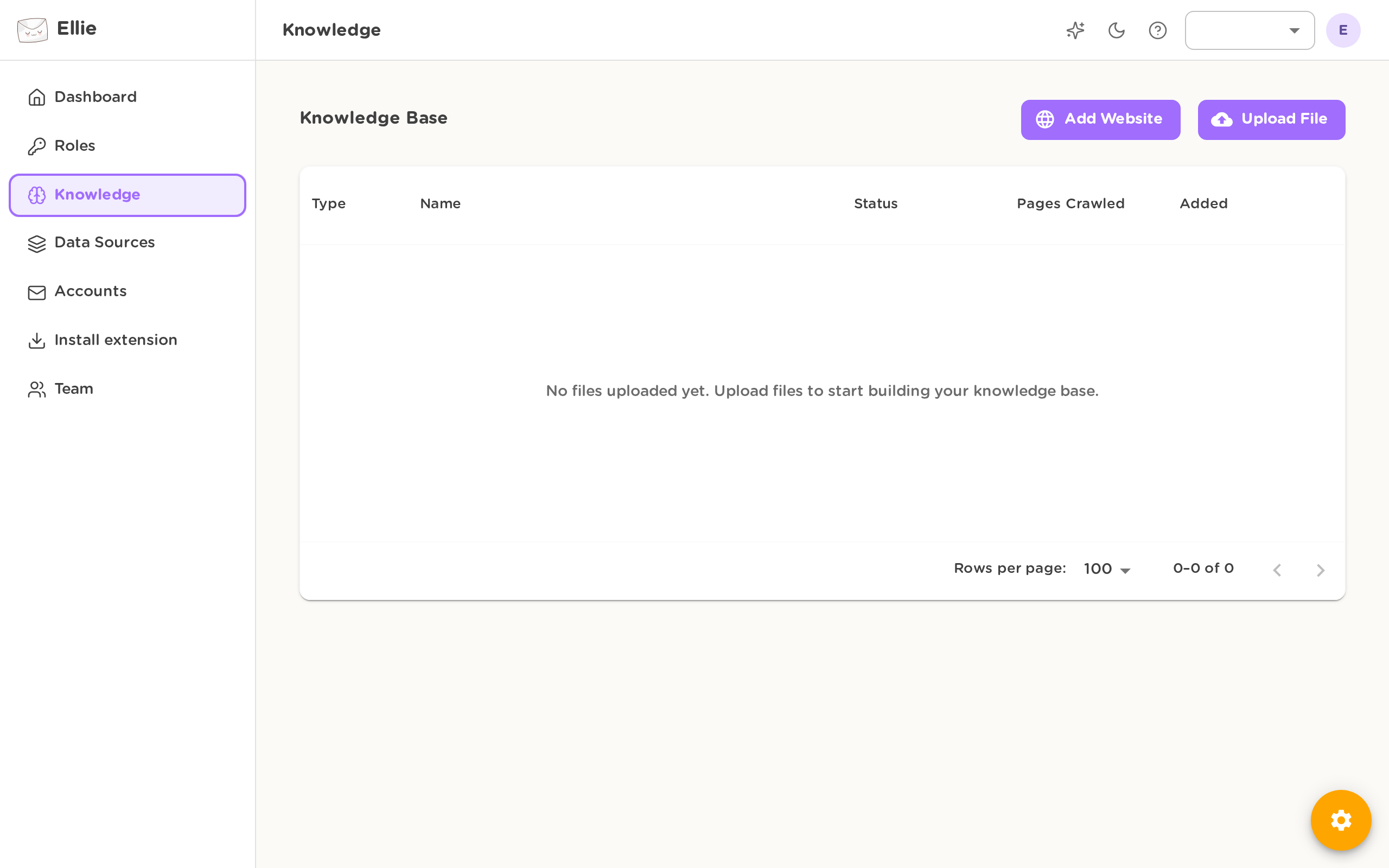
- Start website training from the website training option in Knowledge.
- Enter the website URL you want Ellie to crawl.
- If needed, add one or more exclude URLs so those pages are not included in training.
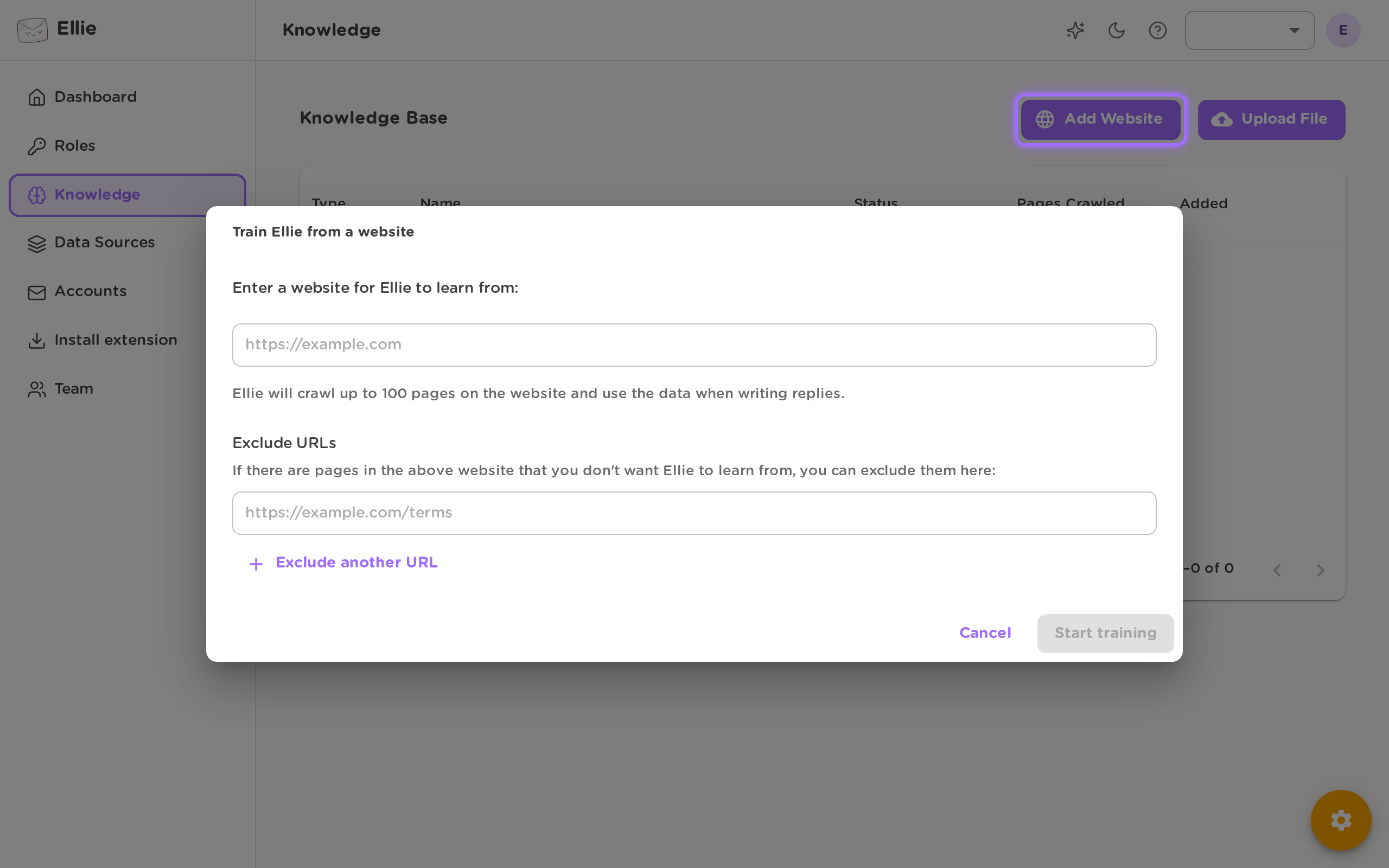
- Submit the website training request.
- Check the new entry in the Knowledge list to track progress. Website items can appear with statuses such as pending, crawling, processing, finished, or error.
- Use View Crawled Pages on a website entry if you want to review which pages were crawled.


Good to know
Website training requires an active subscription. If your plan does not include website crawling, you’ll be prompted to upgrade before you can start.
- After you submit a website, Ellie adds it to the Knowledge list right away so you can track progress there.
- You can recrawl or delete a website entry later, but those actions are unavailable while that website is still in progress.